Posts

Showing posts with the label tips and tricks

How to bypass SSL security warning from Chrome - badidea

Image
If you are hitting something by IP and get a cert warning in Chrome, you can type "badidea" to bypass it quickly.

Downloads folder in Windows loads slowly

Image
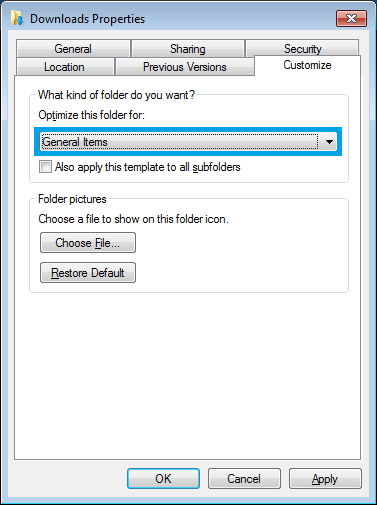
The downloads folder is the default location for files downloaded from various folders (some browser let you choose one during download and allow them to use a separate folder). The downloads folder usually ends up being optimized for images and when you have other files, it tends to slow down the file listing as you open it. One of the tricks is to change the settings of this folder to optimize it for a variety files and not just for pictures. Right click on the Downloads folder, select Properties and go to Customize tab. Select General Items from the drop down for Optimize the folder for . Click on Apply and OK to save the changes. More posts on proper usage of Windows OS: I changed Open with option of all the exe files. How to fix it? Prevent DDoS attacks on Skype. Get rid of animations and focus on task at hand. Attaching a file to a jpg.

Important Sap Gui Key Shortcuts That Will Increase Your Productivity

Image
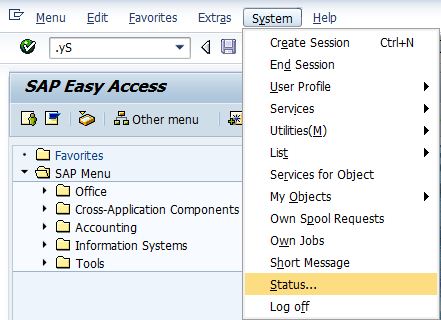
The area in which you enter an SAP transaction code is called Command-field or "OK Code". The shortcut to select this command field is CTRL+/ Here are some entry options for OK codes: /n - The /n option terminates the current transaction /n<TXNCODE> - The /n option terminates the current transaction and TXNCODE followed by /n calls transaction TXNCODE /nend - This option terminates all the sessions from the current PC and logs the user off. /nex - This option terminates all the sessions from the current PC and logs the user off immediately without issuing warnings /o - The option /o lists existing sessions and allows deletion or opening of a new session. /o<TXNCODE> - The option /o followed by a transaction code TXNCODE opens a new session and starts transaction TXNCODE in the new session. If the maximum number of sessions per user are breached, an error is displayed. /i - The option /i terminates the current session /i1 - The option /i1 terminate...

Taking a Full Webpage Screenshot using Firefox

Image
If you need to take a screenshot of the entire webpage, you can use Firefox's built in command line feature to achieve it. Press Shift + F2, a command line prompt will appear at the bottom-left part of the browser window. Type screenshot --fullpage and press enter. The page will be saved in your default download location. There are other options available on the command line which can be looked up using the command help

How to Improve Firefox Performance

Image
The performance of Firefox can be improved by simply defragmenting its data files. By adding a script to run every time you start your computer, you can keep the files defragmented. Download sqlite from http://www.sqlite.org/download.html and place it in C:\Windows folder. Open notepad and copy these lines into it. Replace <YOUR_USER_ID> and <YOUR_PROFILE_FOLDER> with the actual values relevant to your system: cd C:\Documents and Settings\ <YOUR_USER_ID> \Application Data\Mozilla\Firefox\Profiles\ <YOUR_PROFILE_FOLDER> for %%i in (*.sqlite) do @echo VACUUM; | sqlite3 %%i exit Save the file with .bat extension. Create a shortcut to the batch file and place it in startup folder C:\Documents and Settings\ <YOUR_USER_ID> \Start Menu\Programs\Startup Now every time you start your computer this batch script will run and defragment the Firefox data files.

Locking All SAP Users Except DDIC and SAP*

You can lock an SAP system from almost all SAP users without using any special script. This method locks all users except DDIC and SAP*, so you may perform a maintenance work using these user IDs. You can lock the users using the following command: tp locksys <SID> pf=<tp profile> To unlock: tp unlocksys <SID> pf=<tp profile> If you require more IDs to be accessible during the maintenance, the users should log in before you run the lock command as this command doesn't affect already logged in users. You can lock and unlock the users, without using tp, using SU10 or directly updating UFLAG field in the table USR02. You can lock a client using the function module SCCR_LOCK_CLIENT from any client and unlock it using SCCR_UNLOCK_CLIENT.

How to Parse A Shell Command Twice

Let me introduce shell variables $0 ... $9, ${10}.., $# before I get to parsing shell command again using eval . Shell assigns the parameters that you pass though a command to its built in variables $1, $2... $9, ${10}... The number of arguments passed are stored in $#. Run this command: set a b c d e f g The command will set a to $1, b to $2, c to $3 ... g to $7 If I run the following command, the output will be c echo $3 Now let's look at the following example: echo $$ 9609 $$ returns the PID of the process echo $$$ 9609$ In the above example $$ is parsed as pre-defined variable $$ and the additional $ is appended to the output. What if I want to print $ followed by PID pf the process? I can do that by preceding that $ with \ \ tells the shell not to interpret the next character's special meaning. echo \$$$ $9609 Now let's get to parsing the command twice. If I want to print the last argument passed, how do I do i...

Unlocking SAP User from Database

This post is meant for people who are new to SAP administration. It will teach you how to unlock a user by altering the table field where the user's lock status is stored. Since the lock status of a user is persisted at the database level. One can unlock (or lock) a user using SQL commands or using transaction SE16. If you intend to use the SQL methods, please ensure that it is done on DEV/QA systems and you are not violating your company's security policies. The lock status is stored in the field uflag in the table  usr02 . If uflag is 128, the user is locked. By changing it to 0, you will be able to unlock it. Here is an example to unlock the user DDIC in client 000: UPDATE sapr3.usr02 SET uflag = 0 WHERE bname = 'DDIC' AND mandt = '000'; commit ;  This technique is useful when you need a mass lock/unlock of users. 

Virtuawin - Multiple Desktops on Windows

Image
Virtuawin is a free software that let's you set up multiple virtual desktops--a common feature on Linux-based OS. Install and switch around the multiple desktops with Ctrl+Alt+[Arrow Key]. You need to disable keyboard shortcuts on your video card so that these hot-keys are exclusively set for Virtuawin. Read their  FAQ for more details. Virtuawin uses Very small footprint and barely any resources. You can download it for free here .

Developer Access Key from SAP Table

Image
Here is a simple trick to get the developer key from SAP system itself. You don't really need to go to marketplace to get a Developer Access Key. You can get it from the table  DEVACCESS using transaction SE16. To request for a new developer key, follow these steps: Log on to the URL http://service.sap.com/sscr with your SAP S-user Click on Register Developer Enter the user name(s) and select the Installation for which the developer key is required Click on Register The key will be displayed in the same screen or you can check from Developer Registered by Me or in DEVACCESS table as described earlier.

Finding Out ABAP Program Called by a Transaction

From Transaction Code SE93 call transaction SE93 and enter the transaction code as input. From Table TSTC Call transaction SE16 and enter table name TSTC Enter the transaction code as input.

Converting SAPscript (OTF) or Spool Request to PDF

You can do this using the report  RSTXPDFT4 . Run this report from SE38, give the spool request number as input and the pdf file names as output. The following restrictions apply: The PDF conversion only supports true bar codes for Smart Forms, which were generated with the new bar code technology with SAP NetWeaver 2004. In all other cases, the bar code is only simulated. PDF conversion, especially of ABAP lists, is slower and is therefore not suitable for mass printing. However, you can speed up the conversion to PDF using the FASTLISTCONV option in report RSTXPDF3. The font selection for ABAP lists is predefined in the PDF converter and cannot be changed.

Attaching a File to JPG File

Image
Here is a neat trick to embed a file to am image: Gather your image and the files you wish to put into it.  I have a sapnwnewbie.txt which which I will attach to secret.jpg Add the files you want to hide into a new RAR archive Open Command Prompt Go to the folder where your files are located. Type 'copy /b secret.jpg + sapnwnewbie.rar sapnwnewbie.jpg' where secret.jpg is the original picture, sapnwnewbie.rar is the file to be hidden, and sapnwnewbie.jpg is the file which contains both. Now try opening the file with Picture Viewer and then with WinRAR. Here is the image file with an embedded file.

Listen to Microphone on Windows 7 and Ubuntu

Image
Listening to Microphone on windows 7: Right-click on the Volume control icon and select "Recording deivices" Right-click on Microphone/Line In and choose Properties Go to Listen tab and check Listen to this device" Press Apply or OK to activate the changes. Listening to Microphone on Ubuntu: Install Jack:  sudo apt-get install jackd Open Jack control from Audio and Video Click on "Start" and then on "Connect" Select each capture_n, connect to the system in right panel and press connect You can use this feature to connect other audio devices to your computer.

Tips and Tricks to Improve Your Windows 7 Experience

Image
We have compiled some nifty tricks that are tested on Windows 7. Some of them work on XP. Windows Key Shortcuts 1. Windows 7 has a new feature known as  Snap  which can resize and drag the active window to the edges of the screen. You can Snap the open windows by using  Windows Key + Arrow Keys.  2. You can lock your computer with fewer keys than the traditional method of using  Crtl+Alt+Del.  Try  Windows Key + l   3. Windows Key + x will open Windows Mobility Center . You can monitor and adjust your laptop settings with WMC. 4. Windows Key + b  will focus on the System Tray. 5. Windows Key + Pause/Break Key  brings up System Properties. 6. Windows Key + r opens up Run dialog.box. You can type in the name of the exe files to start the application from this box. 7.  Windows Key + Tab Key  iterates through task bar items. 8.  Windows Key + e opens Explorer 9. Use   Windows Key + Number...