Posts

Copying Solution Manager Diagnostic Agent from Other Host

A strategy that I have come across is that the  Diagnostic Agent (DAA) is installed on a host is copied over across other hosts through disk copied (ex: rsync) and then individually configured (corrected actually) using the following steps: As root user, stop saposcol and saphostexec /usr/sap/hostctrl/exe/saposcol -k /usr/sap/hostctrl/exe/saphostexec -stop Logon as daaadm (or the <sid>adm with which Diagnostic Agent is configured) Connect DAA to Solution Manager (the example shows connectivity to P4 port, you can also connect via Message Server using a slightly different command) /usr/sap/DAA/SMDA<NN>/script/smdsetup.sh managingconf hostname:"<FQDN of Managing Solution Manager Host" port:"<Solution Manager P4 Port>" Cleanup secure storage of the old DAA /usr/sap/DAA/SMDA<NN>/script/smdsetup.sh secstorej2ee user:"SMD_ADMIN" pwd:"<password>" Start DAA (saposcol and saphostexec will be automatically started...

Pulling information from Oracle table and assigning it to a UNIX variable

Let us say you have a table (myemployeetable) containing employee names, IDs etc and you are writing a script carrying a variable meant to hold the total number of employees. You can get the total count of employees by running a sql file and assigning the output to this variable. This is however not that straightforward. A sql command outputs a lot of information that has to be excluded when the result value is assigned to the variable. First, you don't want to print column names, so turn the heading off. set heading off Next, in the output, you do not want messages like "x records selected". To do this, turn feedback off. set feedback off Suppress all headers, page breaks, titles etc by setting the page size to 0. set pagesize 0 If you are using a SQL variable, you have to suppress how a variable is substituted before being sent to execution. This is done by turning verify off. set verify off The output of sql command shows "SQL>", this can ...

User Authentication using Keys via PuTTY

Image
SAP Admins have to constantly log in to the server at OS level to carry out their every day tasks. A normal setup of SAP landscapes involves tens and hundreds of servers and logging on to these servers using passwords is error prone or slightly delayed by requiring to access password vaults. A simple solution is to use public-private keys to authenticate the users. You generate a key pair. Keep the private key a secret and upload the public key on the server. Then use the private key while logging on through PuTTY. Because you are keeping Private Key a secret, server accepts connections via the Private Key to recognize you. To set this up we first need to create the key pair Download PuTTYgen  and start it Click on Generate button to generate public and private key pair Move the mouse cursor to generate randomness Save the private key and copy the public key (or save the public key) We now have the key pair Place the Public Key on the server Log on to t...

SAP Upgrade Dependency Analyzer

Image
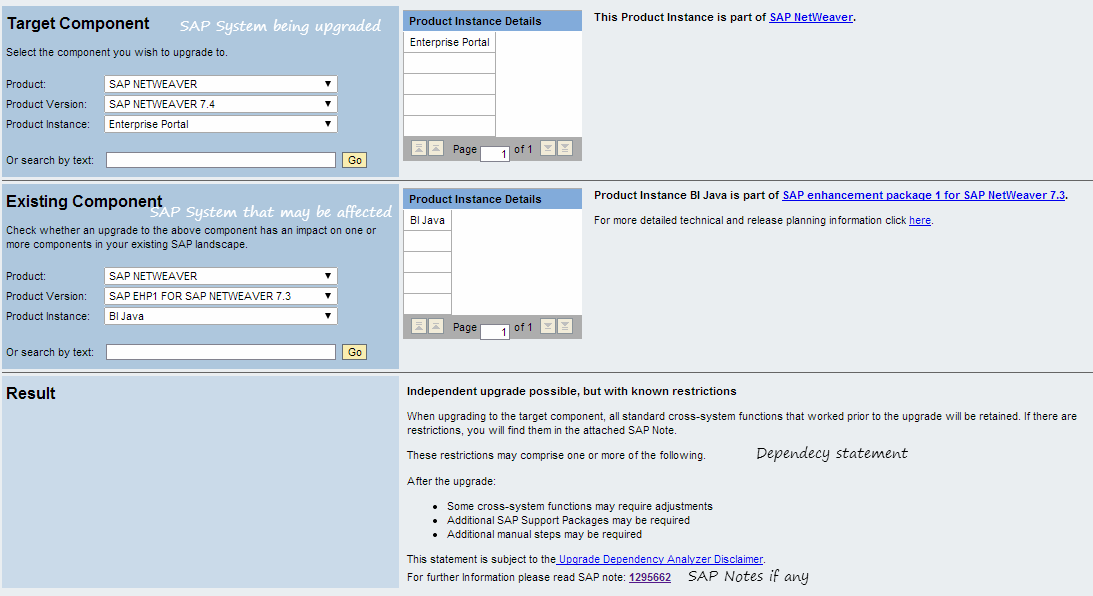
When you choose to upgrade an SAP system, it may break functionality on connected SAP systems. For example, when you upgrade your R/3 system to ECC, connectivity with SAP XI will not work as it was earlier. Similarly MDM upgrade will have issues if you use SRM-MDM catalogues. A quick check can be made using SAP Upgrade Dependency Analyzer to check if any additional changes are to be made on connected SAP systems.

iPad Apps and Accessories - Photo Editing

Image
Photo Editing PS Express : Free photo editing tool from Adobe, makers of Photoshop. Afterlight : Simpler photo editing tool; easy navigation. Don't judge by its Android version. Costs $0.99. Snapseed : Free photo editing app.Aside storing, Snapseed is really handy with useful features like sharpening, tweaking contrast, brightness; or sharing feature. Retouch : Remove just about any background item from a photo. Costs $0.99 Photogene : One of the best photo editing tool with nice retouching capabilities. Costs $2.99

iPad Apps and Accessories - Browsers

Browsers Safari: The default browser. Loads faster in comparison to other browsers because Apple doesn't allow other browsers to use the Nitrous booster. Chrome : Solid featues. In case your prefered browser on desktop is Chrome, you can get to to sync with the desktop browser. iCab Mobile : I like this one for all the extensions and ease of downloading any content I come across. It has fullscreen options, multitouch gestures, addon widgets, etc. Sleipnir : It works fantastically with my browsing habits. A long hold on a link opens a background tab, drawing an L closes the current tab, and four finger swipe lets you shift between open tabs. Close to iCab and free! Atomic Browser : Private browsing, change font size, identify browser as mobile safari, safari desktop, firefox, or Internet explorer 6,7, or 8. You can change the screen brightness from the browser, multi tab, ad blocking, configurable multitouch gestures and many other things.

Cache issues when PI is connected to older SLD

If an SAP PI 7.1 or newer release system is connected to SLD 7.0, the cache update may fail with the following error; com.sap.aii.ib.core.abapcache.CacheRefreshException: Unable to find the SLD element (SAP_BusinessSystem, [CreationClassName, SAP_BusinessSystem, string, Name, SID_NNN, string]) The error occurs as the wizard to create a new business system in the SLD 7.0 does not create enough information for proper functionality of the PI Integration Directory. An association to HTTP Service Port required by cache refresh for notifying AS ABAP about changes in the configuration is not created. To fix this problem, create missing information in SLD by following these steps: Call the SLD URL in a browser: http://host:port/sld > Administration > Content Maintenance Select Subset: All With Instances; Class: HTTP Service Port Click on 'New HTTP Service Port' Fill following fields: CreationClassName: SAP_HTTPServicePort Name: <SID>_<CLIENT> SystemCr...