Posts

Showing posts with the label sum

Increasing R3trans and tp trace levels for SUM

If R3trans or tp runs in SUM fail and you want to troubleshoot it, you can try increasing the trace level to check the details on f the he failure. For R3trans: 1. Go to folder .../SUM/abap/tmp. 2. Create a text file named R3trans_trc_desc with the one-line content below. level:4 3. Retry the step in SUM to generate log files again. 4. Go back to chek the new log files with more detailed information For tp: 1. Go to folder .../SUM/abap/tmp. 2. Create a text file named tp_trc_desc with the one-line content below. level:4 3. Retry the step in SUM to generate log files again. 4. Go back to chek the new log files with more detailed information  Remove these files after the issue is reproduced. Leaving the trace level high will slow down the upgrade or update.
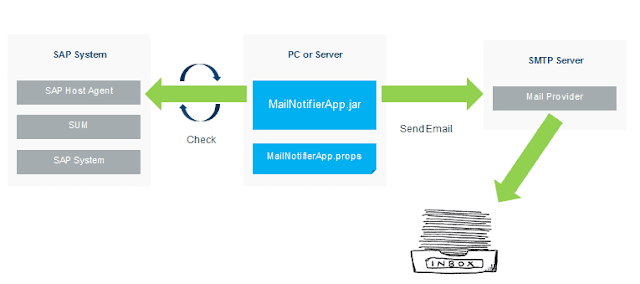
SUM MailNotifier - Get email notifications when SUM tool is waiting for user input

Image
Starting with SUM 1.0 SP 18, SAP has delivered a client program MailNotifierApp.jar that connects with the host agent and triggers emails when SUM is waiting for a user input. MailNotifier has to run on a host that can connect to both SUM using HTTP(S) and SMTP mail server. This host can be your PC, Primary Application Server where SUM is running or any host that fulfills these conditions. In order to use MailNotifier Extract SUM tool and go to SUM\ABAP\mailNotifier. Copy MailNotifierApp.jar (application) and MailNotifierApp.props (properties file) to the host which can connect to SUM and SMTP server. Update MailNotifierApp.props file with appropriate parameter values. Start MailNotifier using the following command java –jar MailNotifierApp.jar properties=<path-to-MyMailNotifierApp.props-file> (or) java –jar MailNotifierApp.jar sum.sid=SID sum.user=sidadm You will be prompted to provide passwords The tool will try to connect with SUM and send a tes...

Choosing own schema name with SUM DMO procedure

When performing the DMO procedure with SUM, if you want to change the target schema name, set the following parameter in <path to SUM>/abap/bin/SAPup_add.par /migrate/AskTargetDBUSER=1 SUM will offer you a separate dialog to enter the schema name. The name will not get the suffix SAP.

Resetting SAP Upgrade

Image
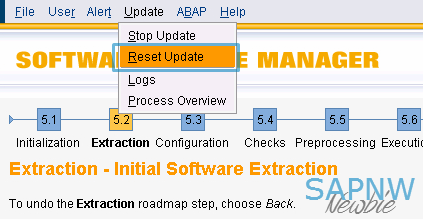
While SAP upgrade is in the preparation phases, SUM tool offers an option to reset the work done by SUM tool from the menu option: Update > Reset update This is the recommended method of resetting the upgrade. If the upgrade was not properly reset from a previous attempt. The subsequent run can fail at the step PREP_INIT/VALCHK_INI with error similar to the following: SAPup broke during phase VALCHK_INI in module PREP_INIT / Initialization Error Message: SAP_ABA is in an undefined state, that is not safe to be upgraded, reason Upgrade wasn't completed - Call the SAP Support This example shows SAP_ABA component, it could be any component(s) that may be in undefined state. If you encounter this problem, you have the following two choices: 1. Reset from command prompt by executing SAPup with reset prepare option cd <upgrade directory>/abap/bin ./SAPup reset prepare 2. Run the report  RSUPGRES as DDIC user from 000 client The repor...

SUM Javaonly update on Dual Stack

Image
SAP recommends using SUM tool for updates or upgrades , and at the same time they support SPAM and SAINT tools for updating ABAP stack. Using SPAM/SAINT is faster (and at the same time time tested method we all are comfortable with). As long as SAP continues supporting SPAM/SAINT, Basis admins are more likely to use it. For J2EE stack, SAP has discontinued support of updating using using JSPM. Therefore patching J2EE can only be done using SUM. In case of Dual Stack, because JSPM is not supported, J2EE can only be updated using SUM. You would still prefer to update the ABAP part using SPAM/SAINT. But you cannot patch ABAP and then start up SUM with default options to patch J2EE. It will error out on the ABAP side of SUM. To patch J2EE on Dual Stack system, you can start SUM using the following option: STARTUP javaonly With this option, SUM will not patch ABAP stack and will only patch the J2EE patch. The advantage? One can patch ABAP using SPAM/SAINT and then patch J2E...

SUM Error: Could not detect AS Java release

This post discusses various known issues and solutions to deal with the following error when running Software Upgrade Manager (SUM): Could not detect AS Java release. Return code condition success evaluated to false for process /usr/sap/<SID>/<INST>/j2ee/cluster/bootstrap/scripts/version.sh for action ACTION_VERSION. Using DEFAULT configuration fro web methods protection Edit DEFAULT.PLF file from /usr/sap/(SID)/SYS/profile and set configuration:  service/protectedwebmethods = DEFAULT Restart all the SAP instances (including sapstartsrv) and retry the failed step. Replace the scripts Download the latest SERVERCORE.SCA patch file from service market place. Extract sap.com~bootstrap.sda.sda from SERVERCORE.SCA/DEPLOYARCHIVES with an archiver. Extract the following files from sap.com~bootstrap.sda.sda/script launcher.bat launcher.csh launcher.sh version.bat version.csh version.sh version.jstart Go to /usr/sap/[SID]/[INSTANCE]/j2ee/j2ee...

How to reset SUM password

When you first launch SUM tool, it requests you to set an admin password for the tool itself. If for some reason you forgot the password (feeding incorrect password will throw the error: " The password you have entered for role Administrator is wrong "), here is how you can change it Stop the SUM tool Go to the folder <SUM Directory>/SUM/sdt/data Rename or move the files .sdt_storage and .sdt_keystore Start the SUM tool again and it will prompt you to set the new passwords Changing passwords will not reset the upgrade phases, you can continue from the point where SUM stopped.