Posts

Showing posts with the label upgrade

Resetting SAP Upgrade
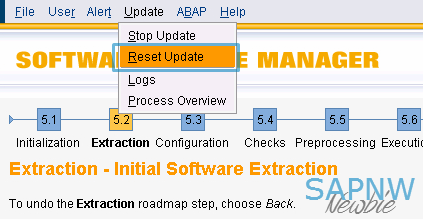
Image
While SAP upgrade is in the preparation phases, SUM tool offers an option to reset the work done by SUM tool from the menu option: Update > Reset update This is the recommended method of resetting the upgrade. If the upgrade was not properly reset from a previous attempt. The subsequent run can fail at the step PREP_INIT/VALCHK_INI with error similar to the following: SAPup broke during phase VALCHK_INI in module PREP_INIT / Initialization Error Message: SAP_ABA is in an undefined state, that is not safe to be upgraded, reason Upgrade wasn't completed - Call the SAP Support This example shows SAP_ABA component, it could be any component(s) that may be in undefined state. If you encounter this problem, you have the following two choices: 1. Reset from command prompt by executing SAPup with reset prepare option cd <upgrade directory>/abap/bin ./SAPup reset prepare 2. Run the report  RSUPGRES as DDIC user from 000 client The repor...

SUM Error: Could not detect AS Java release

This post discusses various known issues and solutions to deal with the following error when running Software Upgrade Manager (SUM): Could not detect AS Java release. Return code condition success evaluated to false for process /usr/sap/<SID>/<INST>/j2ee/cluster/bootstrap/scripts/version.sh for action ACTION_VERSION. Using DEFAULT configuration fro web methods protection Edit DEFAULT.PLF file from /usr/sap/(SID)/SYS/profile and set configuration:  service/protectedwebmethods = DEFAULT Restart all the SAP instances (including sapstartsrv) and retry the failed step. Replace the scripts Download the latest SERVERCORE.SCA patch file from service market place. Extract sap.com~bootstrap.sda.sda from SERVERCORE.SCA/DEPLOYARCHIVES with an archiver. Extract the following files from sap.com~bootstrap.sda.sda/script launcher.bat launcher.csh launcher.sh version.bat version.csh version.sh version.jstart Go to /usr/sap/[SID]/[INSTANCE]/j2ee/j2ee...

How to reset SUM password

When you first launch SUM tool, it requests you to set an admin password for the tool itself. If for some reason you forgot the password (feeding incorrect password will throw the error: " The password you have entered for role Administrator is wrong "), here is how you can change it Stop the SUM tool Go to the folder <SUM Directory>/SUM/sdt/data Rename or move the files .sdt_storage and .sdt_keystore Start the SUM tool again and it will prompt you to set the new passwords Changing passwords will not reset the upgrade phases, you can continue from the point where SUM stopped.